
WARNING: Changes to the Service Manager may result in effects on the configuration of your Search Gen Lite. We suggest consulting with Harvest Management before making any changes.
The Service Account tab contains your player’s key settings. You can change many aspects of your player, including background color, image and display settings.
Setting Explanations
To access you players settings, go to Apps, then select the settings button on your SGL service.
General
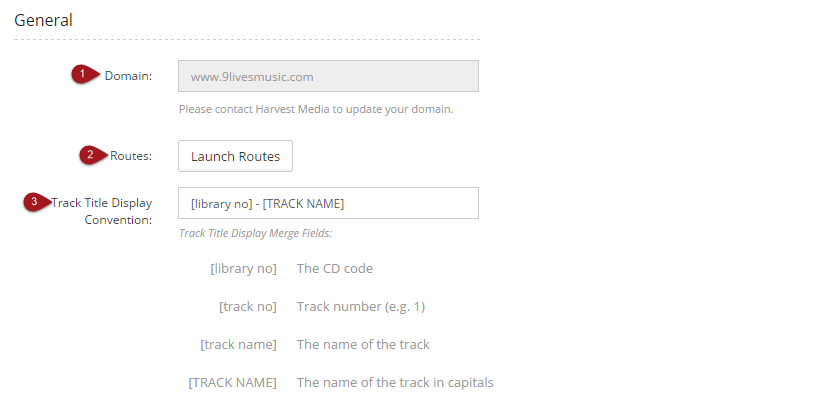
- To edit or update the domain name please contact Harvest Media
- Launch Routes
- Edit the Track Title Display Convention, please use the merge fields provided
Attributes
App Features: add URL in this section to change the redirect route of the Harvest Amplify logo

Layout
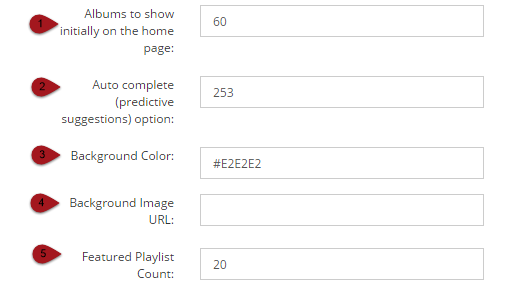
- Albums to show initially on the home page: this indicates the number of albums that will be visible on the home page
- Auto complete (predictive suggestions) option: do not change
-
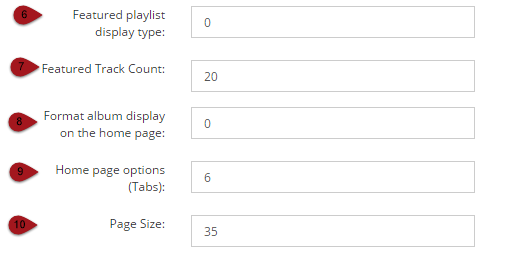
- Featured playlist display type: choose '0' for album view or '1' for list view
- Featured Track Count: this indicates the number of tracks that will be visible on the home page
- Format album display on the home page: choose '0' for album view or '1' for list view
- Home page options (Tabs):
1 = Tracks listings only
2 = Album listings only
4 = Playlists only
5 = Tracks and Playlists
6 = Albums and Playlists - Page Size: leave at 50
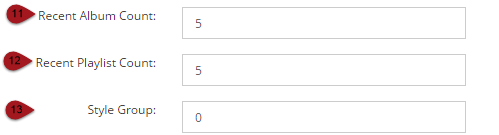
- Recent Album Count: the history of your members who view albums, this is displayed on the Left Hand Nav on the Amplify site
- Recent Playlist Count: the history of your members who view albums, this is displayed on the Left Hand Nav on the Amplify site
- Style Group: leave as zero
Licensing:
- Enable Licensing: tick if you want to disable downloading
- Members must be approve to license:

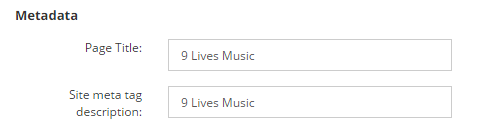
Metadata:
- Page Title: add Amplify site title
- Site Meta Tag: add Amplify site title
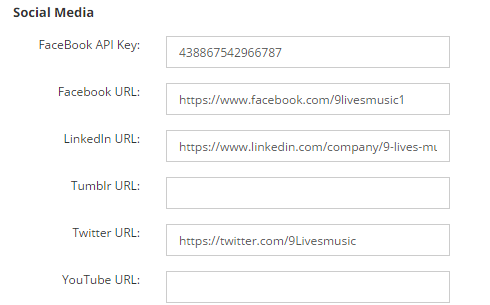
Social Media: add all social media links and Facebook API into site
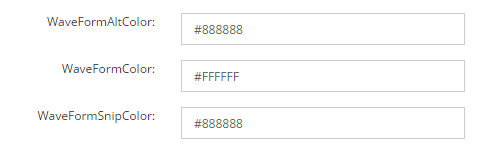
Wave Form: change Wave for colors
Comments
Article is closed for comments.